

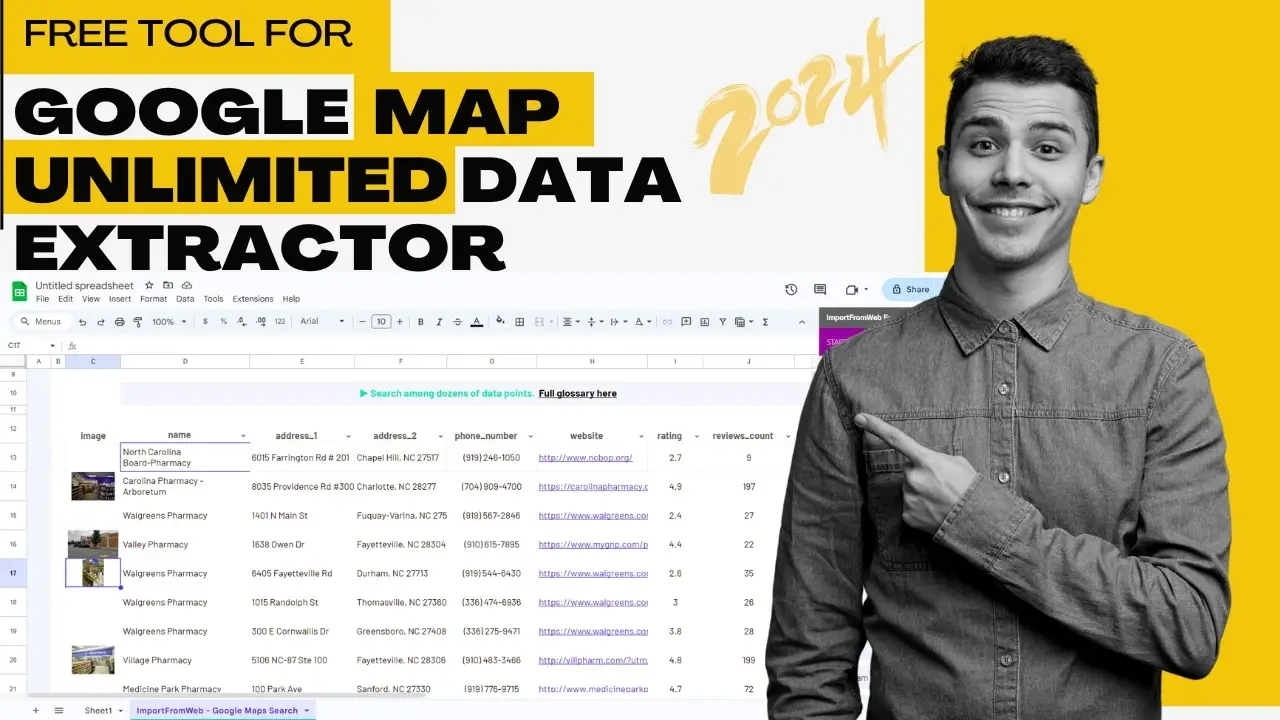
Scraping data from Google Maps can be incredibly useful for businesses, researchers, or marketers looking to gather information like business names, addresses, phone numbers, and ratings. This guide will show you how to use Google Sheets to scrape data easily and efficiently, even if you’re not tech-savvy.
Why Scrape Data from Google Maps?
Google Maps is a treasure trove of valuable business information. By scraping data, you can:
- Build a targeted list of businesses.
- Analyze market trends.
- Enhance your marketing strategies.
With Google Sheets and the right add-on, scraping data is now simpler than ever!
Step-by-Step Guide to How to Use Google Map Data Scraping
1. Prepare Your Tools
- Browser: Open Google Chrome.
- Account: Log in to your Google account.
2. Install the Required Add-On
- Open Google Sheets by searching for it on Chrome.
- Click on the first result and log in to your account.
- Go to the extensions tab in Google Sheets and select Add-ons.
- Search for “Import from Web” in the add-ons search bar.
- Select the second option and click Install.
- Sign in with your Google account when prompted and grant the necessary permissions.
3. Activate the Extension
- After installation, close the installation window.
- Go back to the extensions menu.
- Locate Import from Web | Web scraping at the bottom of the list and click on it.
- A sidebar will open on the right.
4. Use a Premade Template
- In the sidebar, click on Template and select the 3rd option, Google Maps.
- Click on Scrape Data for Map.
- The template will scrape sample data such as business name, address, phone number, and ratings.
5. Custom Data Scraping
If you need specific business data (e.g., hotels in Jaipur):
- Open a new tab and go to Google Maps.
- Search for the business type and location (e.g., “Hotels in Jaipur”).
- Copy the URL from the address bar.
6. Edit the Template in Google Sheets
- Go back to Google Sheets and locate the blue link in the template.
- Hover over it and click the pencil icon to edit.
- Replace the two URL fields with the copied Google Maps URL.
- Click Apply and then click on a blank space to save changes.
7. Start Scraping
- The add-on will now scrape data from the provided URL.
- In a short while, you’ll see extracted data appear in your Google Sheet.
- Depending on availability, the data may include business names, addresses, phone numbers, and ratings.
Tips for Effective Google Map Data Scraping
- Use specific search terms for more precise results (e.g., “Cafes in Los Angeles”).
- Always review the extracted data for accuracy.
- Use the data responsibly and ensure compliance with local laws.
Conclusion
Scraping data from Google Maps has never been easier. With Google Sheets and the right add-on, you can efficiently gather valuable business information for your projects. Whether it’s for marketing, research, or business growth, this simple method ensures you get the data you need.
Start scraping today and take your data-driven decisions to the next level!
Call to Action
Did you find this guide helpful? Share it with your friends or colleagues who might benefit from data scraping! For more tips and tutorials, stay tuned to our blog.
Let me know if you need further adjustments or additional elements for this blog post!